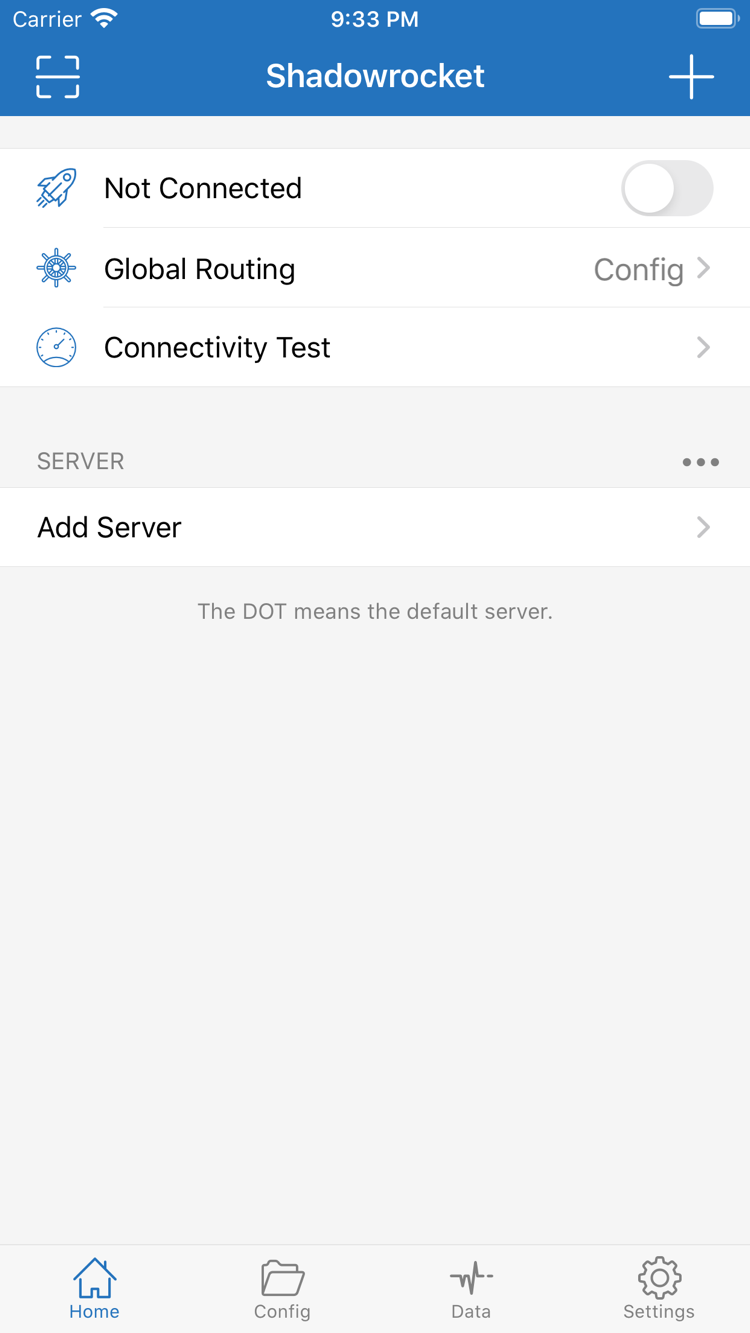
Check Config / Proxy / Direct
Global Routing determines how requests are handled. Go to Home → Global Routing: Config applies the rules in the currently enabled configuration, Proxy sends requests through the proxy path, and Direct uses a direct connection. To route traffic by domain or address, select Config, then check the enabled file and rule order in Config. Rules are generally matched from top to bottom; the first matching rule determines the policy. Note the original setting before switching modes. If a page loads in Direct, that only confirms basic network connectivity—it does not prove the server is working.
DOMAIN-SUFFIX,example.com,PROXY
Trigger connections under specified conditions; this does not replace routing rules
On Demand manages connection triggers when specified conditions are met; it does not replace Global Routing. First connect manually from Home and verify access to a webpage, then go to Settings → On Demand and review the available conditions. Save and test each change. If the connection starts again after you turn it off, check the trigger settings here instead of repeatedly deleting servers. For troubleshooting, temporarily turn off On Demand and test manually on a consistent network. Once the server, DNS, and rules are working, restore the conditions you need.
On Demand
Type must match your existing server details
Choose the protocol based on the server details you already have, not its name or perceived speed. Go to Home → Add Server → Type and select Shadowsocks, VMess, VLESS, Trojan, HTTP / SOCKS5, WireGuard, or Hysteria2, then enter the corresponding parameters. Each type uses different authentication and transport fields. Match Host, Port, Password, and other details to the information provided; if using TLS, check the related settings as well. After importing, verify that Type and all parameters are complete. A correct protocol name alone does not mean the connection is fully configured.
Shadowsocks · VLESS · Hysteria2
Distinguish a subscription URL from a single share link
An existing subscription imports and updates a server list; a single share link usually represents one server. Don’t confuse the two. If you have your own subscription URL, go to Home → Add Server, choose Subscribe, enter the URL and a descriptive remark, then save and check the list. If an update fails, verify that the URL is complete and still valid, and that the current network can reach it. Updating a subscription changes the list; it does not automatically fix all local rules. After an update, check the selected server again so you don’t accidentally use an entry that has changed.
Subscribe
Config stores request-handling rules
Configuration files and server lists serve different purposes. Manage and select files in Config. Before editing, keep a working copy, then check sections such as General and Rule. Rule policies should match how you intend to use the configuration. FINAL handles requests that don’t match any preceding conditions; it is not an ordinary domain rule to move arbitrarily near the top. After saving, return to Home, confirm Global Routing is set to Config, and test the relevant requests. Editing a file without enabling it—or leaving the mode set to Proxy / Direct—means the expected routing may not take effect.
FINAL,DIRECT
Use Data to help identify request activity
Data shows traffic information recorded by the client and can help determine whether requests were made during a test. After connecting, note the statistics, open a specific test page, then return to Data and compare the values. You can also check connection records to see which path requests used. The statistics, reset options, and displayed items depend on the current interface; don’t treat these figures as your mobile carrier bill or remote usage totals. If the numbers increase but the page won’t load, continue checking DNS, the server, and rules. A change in traffic alone does not confirm successful access.
Data
Check your cloud account and local copies first
iCloud sync depends on the device’s cloud account, system permissions, and the corresponding options in the app. Check iCloud status in system settings, then review the relevant options and scope in Shadowrocket Settings; available options may vary. Keep any necessary local records before switching devices. After restoring, check servers, configuration files, and the current selection individually—sync does not fully reproduce connection state. Server details and subscription URLs may contain credentials. Hide sensitive fields before sharing screenshots or troubleshooting records.
iCloud