Shadowrocket
Download and verify your purchase
Available on theDownload on the App Store
- Developer Shadow Launch Technology Limited
- App ID 932747118
- $2.99 one-time purchase
- For iPhone and iPad
Paid app, one-time purchase, available only on the App Store. Check the product details before buying. US pricing, device compatibility, and Universal Purchase availability are as listed on the App Store page.
How do I check the storefront and account region?
Shadowrocket is not available in the mainland China storefront. Search results depend on the country or region of the account used for purchases. The App Store storefront is not determined solely by your device language or current location. If Shadowrocket doesn’t appear in search, first check the region of the Apple ID used for Media & Purchases, then see whether the product is available to you. Changing your system language to English does not change the storefront.
Go to Settings → Apple ID → Media & Purchases → View Account → Country/Region. The wording may vary by system version, so follow what appears on your device. To change regions, open the Country/Region settings and review the requirements shown for account balance, existing subscriptions, payment methods, and other conditions before deciding whether to continue.
Whether a region change can be completed depends on the prompts shown in your account settings. Opening a US storefront product page does not mean your account has switched to the US storefront. Seeing the product listing in a browser also does not mean the account used for purchases is eligible. After opening the App Store from the button on this page, check the currency, price, and account messages shown there.
If you see “This app is not available in your country or region,” return to the steps above and check your region instead of repeatedly searching similar names. If you’re prompted about payment or account verification, resolve that first, then return to the product page. Check app availability, purchase eligibility, and device compatibility separately to avoid troubleshooting the wrong issue.
Check the developer, icon, and app ID
The name helps you find the app, but verify its identity before purchasing. The two interface images on this page are official App Store screenshots showing Home and Add Server; they are not a substitute for checking the product listing.
Check the developer name exactly
The developer shown on the product page should be Shadow Launch Technology Limited. Open the full App Store listing, check the developer information near the app name, and verify it again in the product details. A shortened name in search results, descriptive text, or a similar name is not a substitute for the full developer name. Don’t proceed to payment based only on the first search result.
Check the official icon and app ID
The official icon is a blue and purple outlined rocket on a white background, matching the icon shown on this page. The icon can help you identify the app, but it should not be your only check. Then verify id932747118 in the product link; the app ID is 932747118. The App Store button on this page always links to this product listing.
If search results show the same name, a similar spelling, or a look-alike icon, open the product details and check all three identifiers again. If either the developer name or app ID does not match, it is not the Shadowrocket product referenced on this page. Confirm the specific app rather than judging by promotional text or its position in the search results.
Use screenshots to identify interface sections
After installation, start with Home. The top of the screen shows connection status such as Not Connected, and the page includes Global Routing, Connectivity Test, and the SERVER group. Add Server is for entering existing server details, with common fields such as Type, Host, Port, Password, and Method. Available fields vary by selected Type.
App Store screenshots show a particular interface state; layout and fields may differ on your device. Seeing Config under Global Routing in a screenshot does not mean every user should use the same configuration. Verify the app first, then choose the steps that match your own setup. A similar-looking interface is no substitute for checking the developer and app ID.
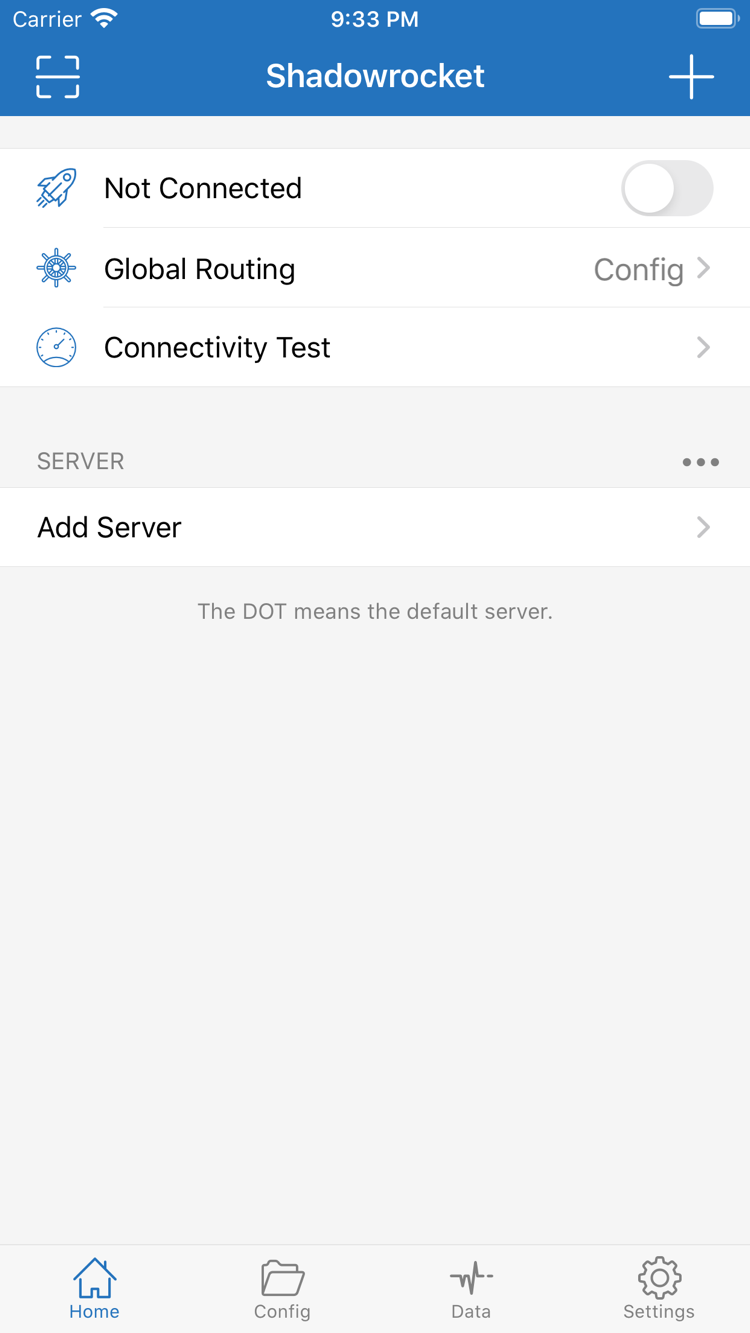
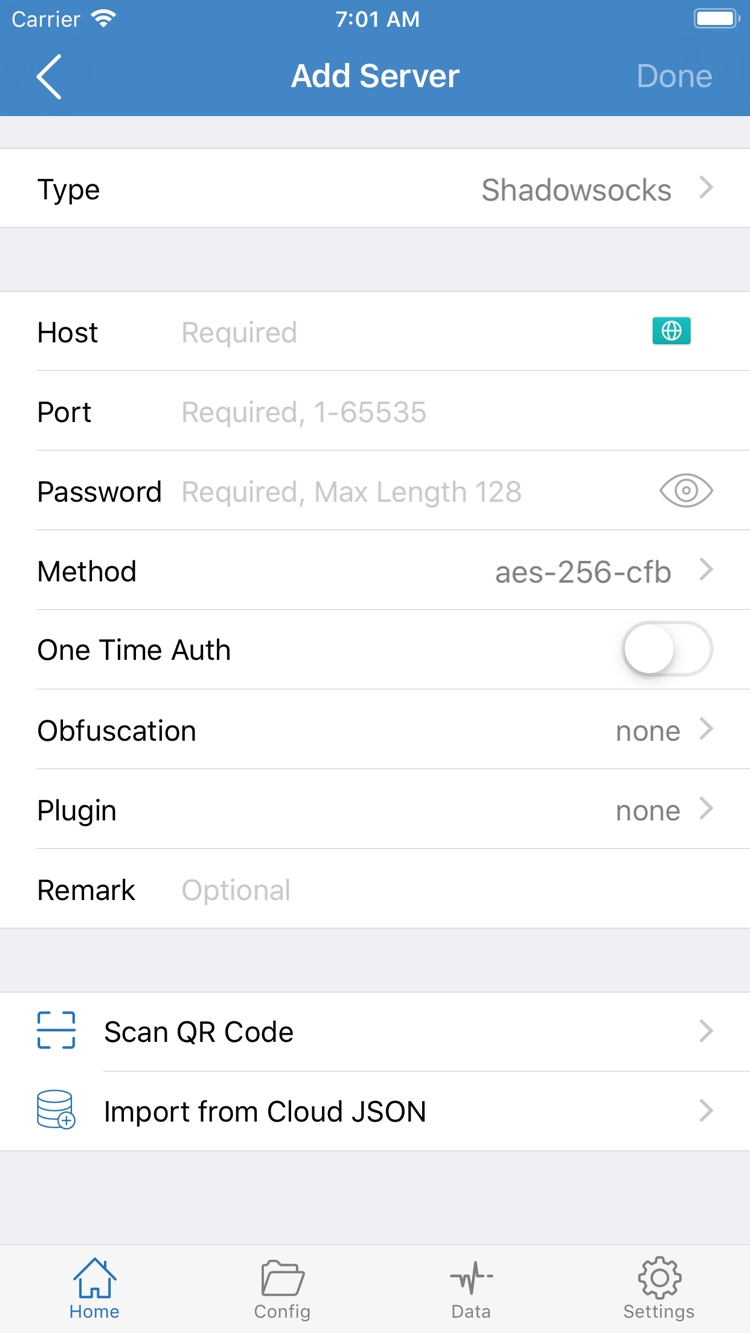
Install and open Shadowrocket on iPhone
Complete your App Store purchase and installation before setting up a connection in the app. Check device compatibility on the product page; system requirements are as listed on the App Store page. Complete payment through the system purchase flow. You can check installation progress in the App Store or on the Home Screen. If the download remains pending, check your network, available storage, and account messages. Don’t mistake an installation issue for a server connection problem.
When you first open the app, take a look at Home; you don’t need to turn on the connection immediately. If you haven’t imported your own subscription or server details, the SERVER list does not necessarily indicate a usable connection. Purchasing the app gives you access to the app; you’ll still need your own valid connection details. See how to import an existing subscription.
What is system VPN configuration permission?
When you first enable a connection, the system may ask permission to add a VPN configuration. This authorization lets the app establish a system network connection; it is not another purchase. Read the prompt and grant permission only when you initiated the connection and have verified the app. The system may also ask for your device passcode or identity verification. Don’t approve permission requests from unknown sources or actions you didn’t initiate.
If you previously denied permission, return to Home and try connecting again, then check the VPN configuration status in system settings. Granting permission only allows the system configuration to run; it does not confirm that the server details are correct or that network requests will succeed. If the connection fails, check the selected server, Global Routing, and current configuration instead of repeatedly reinstalling the app.
Where can I find my purchase record?
Open your account in the App Store and look for Shadowrocket under Purchased; on some system versions, the app list appears under an entry such as “Apps.” Make sure you’re using the Apple ID that made the original purchase, and check your purchase history if needed. Keeping track of where your configuration came from and how to restore it will help more when switching devices than simply noting the app icon on your Home Screen.
iPad and other compatible devices
How can I use the same purchase on iPhone and iPad?
After purchasing once with the same Apple ID, you can use that purchase record to install Shadowrocket on compatible iPhone and iPad devices. Sign in to the original purchase account in the iPad App Store, find Shadowrocket under Purchased, and download it again. Check the App Store page for system requirements and Universal Purchase availability. If a price still appears, verify the account and purchase record before confirming payment again.
The larger iPad display may change list widths, spacing, or navigation compared with iPhone, but identify Home, Config, and Add Server by their actual interface names. Don’t rely on a button’s pixel position in a screenshot; look for its text label. After rotating the device, follow the layout currently shown.
A shared purchase record does not mean your connection details are automatically ready. When using Shadowrocket on iPad for the first time, check whether you’ve imported your own subscription or server details, which record is selected, and whether VPN configuration permission has been granted on that device. A successful connection on iPhone does not replace checking the current iPad configuration.
Where do I check availability for Mac, Apple TV, and Apple Vision?
The compatibility section on the same App Store product page lists Mac, Apple TV, and Apple Vision. Open that product page on the device you want to use and check availability. System versions, device requirements, and Universal Purchase availability are as listed on the App Store page. This guide focuses on iPhone and iPad and does not assume the steps are identical on other devices.
Switching devices or reinstalling: find your original purchase first
Using the Apple ID that made the original purchase, you can usually download Shadowrocket again from Purchased without paying again. On your new device, open App Store → Account → Purchased, find Shadowrocket, and tap the redownload icon. Menu names may vary by system version, but the key is to check the purchase account under Media & Purchases—not just the account name shown at the top of your device.
Why do I see a price when reinstalling?
First make sure the account currently used for purchases is the same one that paid for the app, then check Purchased and your purchase history. The account used for other system services may differ from the one used for App Store purchases. Being signed in on the device alone does not guarantee that the purchase record will appear. If the app was hidden, check your hidden purchases as well.
If you can’t find the original transaction, gather your purchase details and note the current App Store message, then use the account support options on your device. Don’t make repeated purchases just to test whether the account is correct. Check the product page and Family Sharing settings to see whether sharing applies; restoring an individual purchase does not automatically give every family member the same purchase rights.
What else needs restoring after reinstalling the app?
Getting the app again does not restore the configuration on your device. On a new device, import your own subscription or server details, check the active configuration in Config, and verify Global Routing. If you’re using details saved on an old device, make sure they’re still valid and that the server address, authentication fields, and related settings are complete.
Before wiping your old device, make sure you can retrieve your subscription link or server details, and keep any personal configuration you need. Subscription links may contain access credentials; don’t include them in public screenshots or support requests. After restoring your setup, select a record in Home and use Connectivity Test as an initial check, then verify with an actual network request. A single test result is not a complete connection check.
Understand the app purchase, price, and connection service
Shadowrocket is a paid commercial app with a one-time purchase; there is no monthly app purchase fee. The US price is $2.99. Other storefronts display local currency, and the final amount is shown on the App Store product and purchase confirmation pages. Don’t convert the US reference price to estimate the charge in another storefront; account region, tax display, and storefront pricing can affect the amount shown.
“One-time purchase” describes how you buy the app. It does not mean every server entry will remain available indefinitely, or determine the validity period, data allowance, or device limits of an existing subscription. Installing the app, granting system authorization, and having an available server are separate matters. If you can’t connect after purchasing, troubleshoot the relevant step rather than assuming the purchase didn’t go through.
How do I update the app?
App updates are delivered through the App Store. Check for pending updates in your App Store account, or enable automatic app updates in your device settings. Check the product page for update information and compatibility requirements; this guide does not list version details that can quickly become outdated. Before updating, make sure you know how to restore any important personal configuration.
Before purchasing, check these four things in order: whether the app is available in your storefront, whether all three app identifiers match, whether your device is compatible, and whether you already have connection details to import. The first three determine whether you can get the right app; the last affects whether you can set up a connection after installation. For steps and routing modes, read the official manual; for protocol fields, see the protocol reference.
Shadowrocket download and purchase FAQs
Use the App Store message to identify where the problem occurs, then follow the relevant checks.
Why can’t I find Shadowrocket in the App Store?
Shadowrocket is not available in the mainland China storefront. Your Apple ID’s country or region determines which storefront content you can see. Check it under Settings → Apple ID → Media & Purchases → View Account → Country/Region. Any change must meet the storefront’s requirements and may not be possible.
The product page opens, but the app won’t download. What should I check first?
Note the exact App Store message, then check the account used for Media & Purchases, account region, payment status, available device storage, and network connection. Check system requirements in the product page’s compatibility section; App Store listings are authoritative.
Do I have to pay again when I get a new device or reinstall the app?
Using the Apple ID that made the original purchase, find Shadowrocket under App Store → Account → Purchased. You can usually download it again without paying. If a price still appears, check the original purchase record and the account currently in use before proceeding.
Can I install Shadowrocket on iPad without buying it again?
Shadowrocket is available for iPhone and iPad. After purchasing once with an Apple ID, you can use that purchase record to install it on compatible devices of both types. Check the App Store page for system requirements and Universal Purchase availability.
Can I get it on Mac or Apple TV from the same App Store page?
The compatibility section on the same App Store product page lists Mac, Apple TV, and Apple Vision. Check the listing on your device; system requirements, device eligibility, and Universal Purchase availability are as stated on the App Store page.
Where should I start if the interface is in English?
Start with Home, Add Server, Global Routing, and Config. Home shows connection status; Add Server is for entering existing server details; Global Routing lets you choose Config, Proxy, or Direct; and Config manages configuration files. For step-by-step instructions, continue with this site’s official manual.